
Rendering and combining options
One render can change more than one thing. Stack selections across categories, add notes to steer the AI, and get the whole build back as a single photoreal image for a single credit.
Applying multiple elements at once
Every category panel you fill in becomes part of the same render. Open Wheels and pick a set, open Color / wrap and describe a finish, open Spoiler / wing and select a reference: when you hit Render, the AI applies all of it to your car photo in one pass. A full build preview costs the same one credit as a wheel swap.
Open a category and make a selection
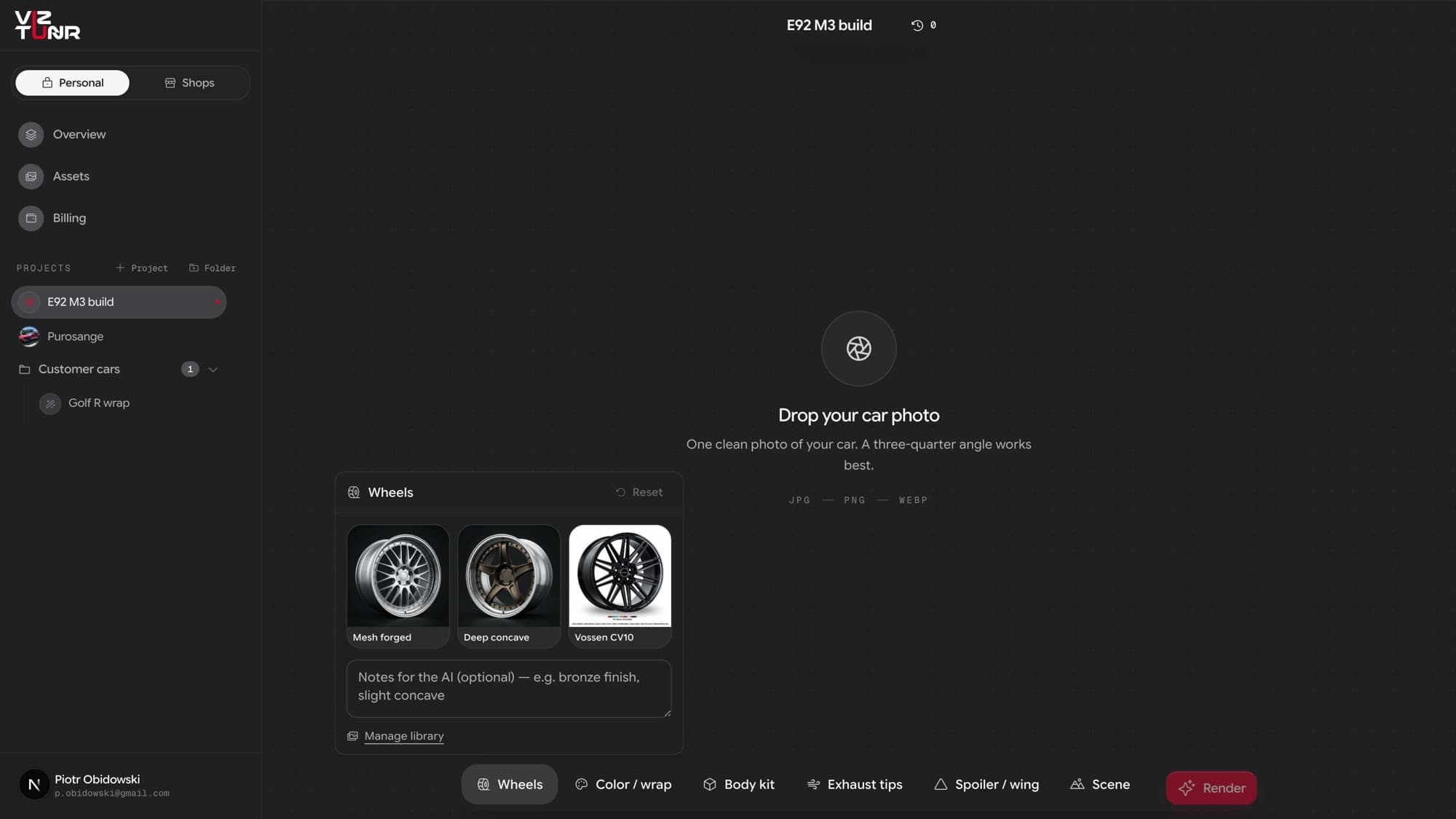
Each panel offers your asset library for that category plus a notes field. A category counts as active when it has an asset selected, a note written, or both. Reset clears the panel; a dot on the category button shows it is active.
Steer with notes
Notes are per category and go straight to the AI. Use them for what a reference image cannot say: “bronze finish, slight concave” on wheels, “satin, keep the roof black” on a wrap, “golden hour, mountain road” on a scene. Short and concrete beats long and vague.
Render
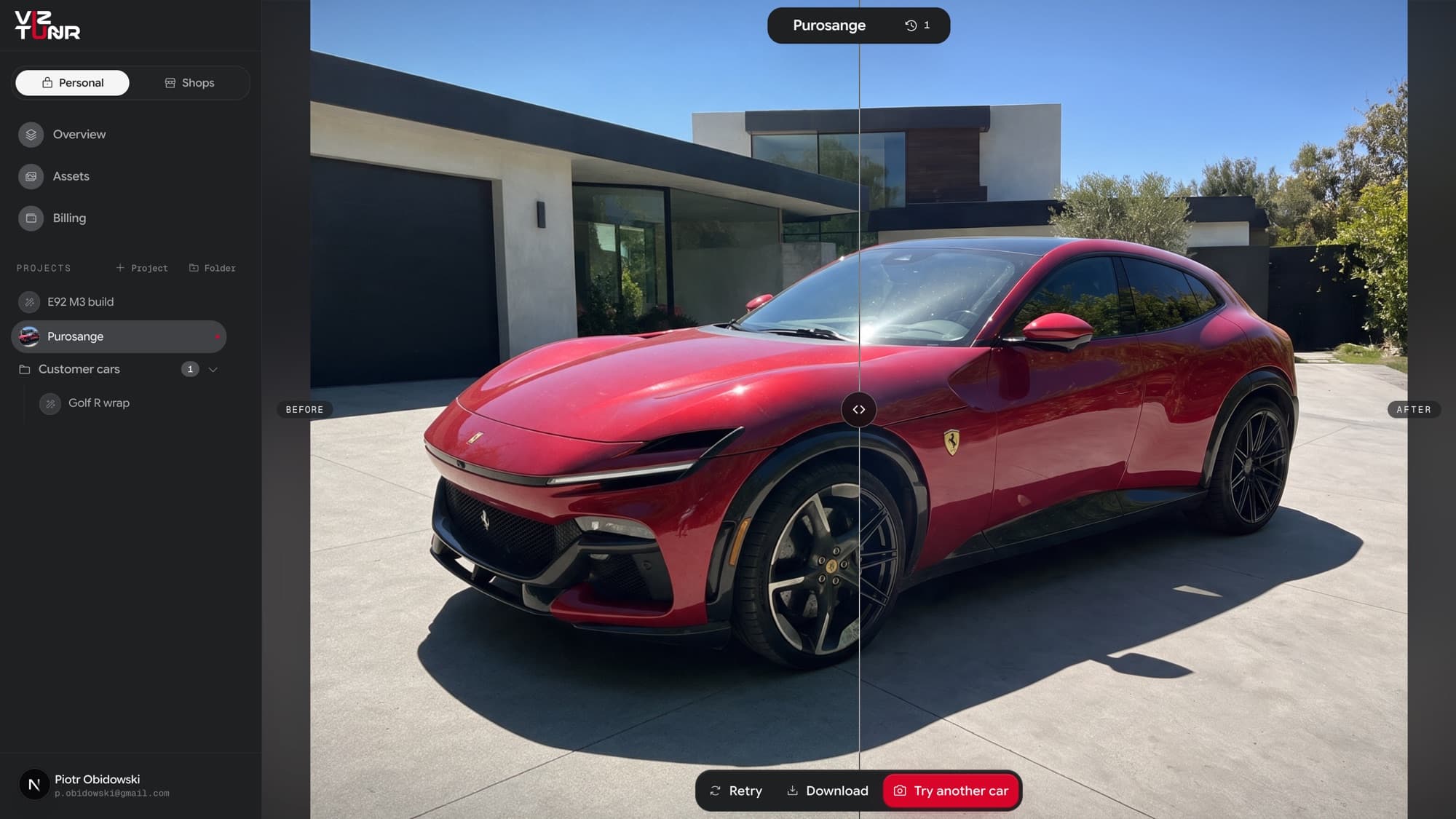
Render spends one credit and takes about a minute. The result opens on the before/after slider; your original photo is never modified, every render is a new image.
After the render
- Retry runs the same photo and options again for a fresh take (it spends a new credit; AI renders vary between runs, and the second take is sometimes the keeper).
- Download saves the full-resolution result.
- Try another car starts a new run in the same project with a different photo; your category selections stay put.
- Every run is kept in the project history (the counter next to the project name), so you can re-open and compare earlier ideas any time.