
Projects and folders
A project is one build: one car photo, every render you have tried on it, and its history. Folders group projects, so customer cars, your own builds, and experiments stay apart.
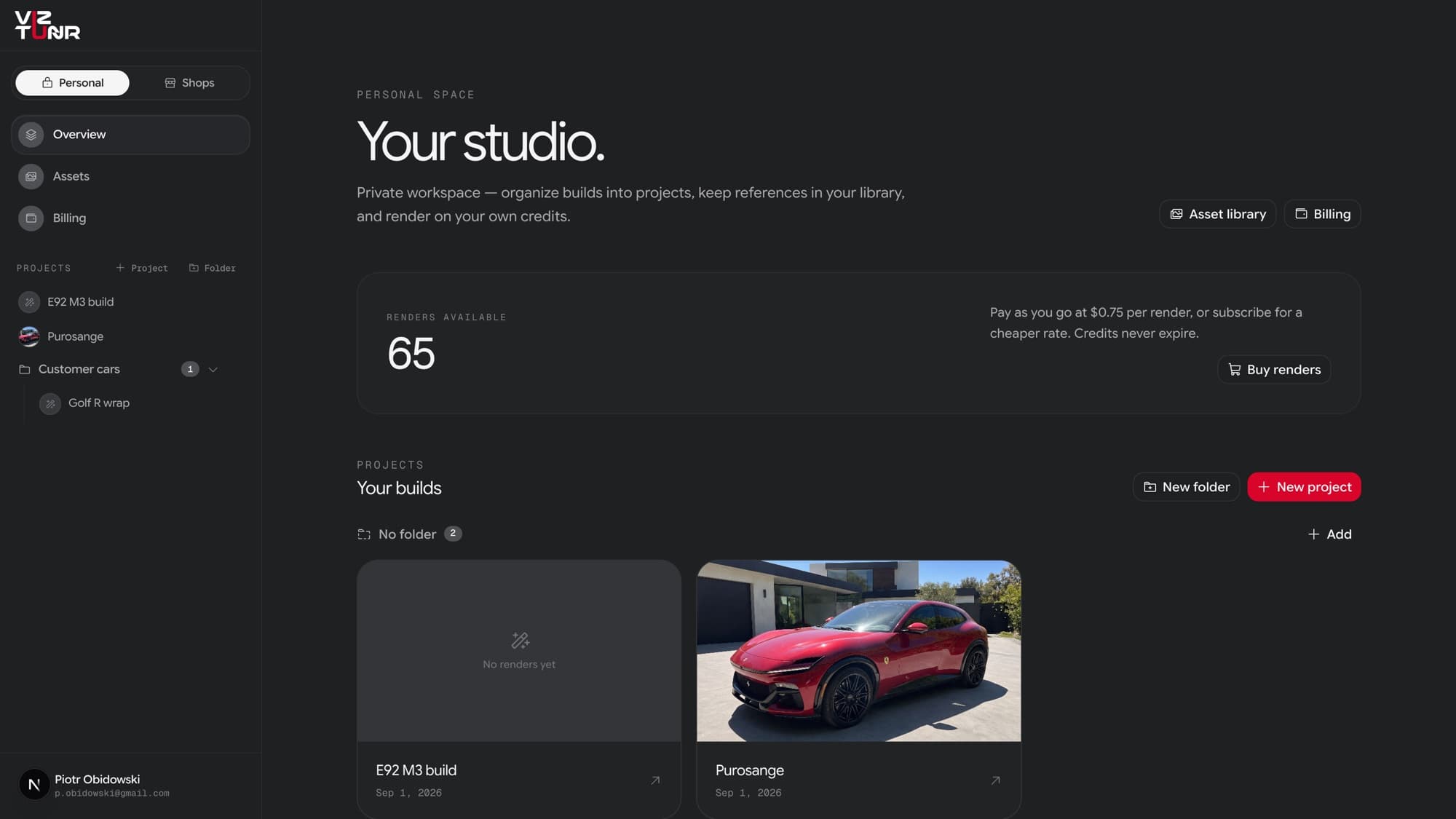
Projects
- Create: the New project button on the overview or + Project in the sidebar. Opening a project that already has renders lands on its latest result in the compare view, not on an empty editor.
- Rename: double-click the project name at the top of the editor and type, or use the project’s ⋯ menu in the sidebar and pick Rename.
- History: the counter next to the project name lists past runs; pick one to re-open it on the comparison slider.
- Delete: from the same ⋯ menu. Deleting a project permanently removes the project, every render in it, and the stored images backing them. Spent credits are not refunded, so download anything you want to keep first.
Folders
- Create: New folder on the overview or + Folder in the sidebar. Each folder shows a count of the projects inside and can be collapsed in the sidebar.
- File projects by drag and drop: grab a project card on the overview and drop it on a folder section, or drop it back on No folder to take it out. The card pulses briefly while the move saves.
- Rename or delete: via the folder’s ⋯ menu in the sidebar. Deleting a folder never deletes projects: everything inside moves to No folder.