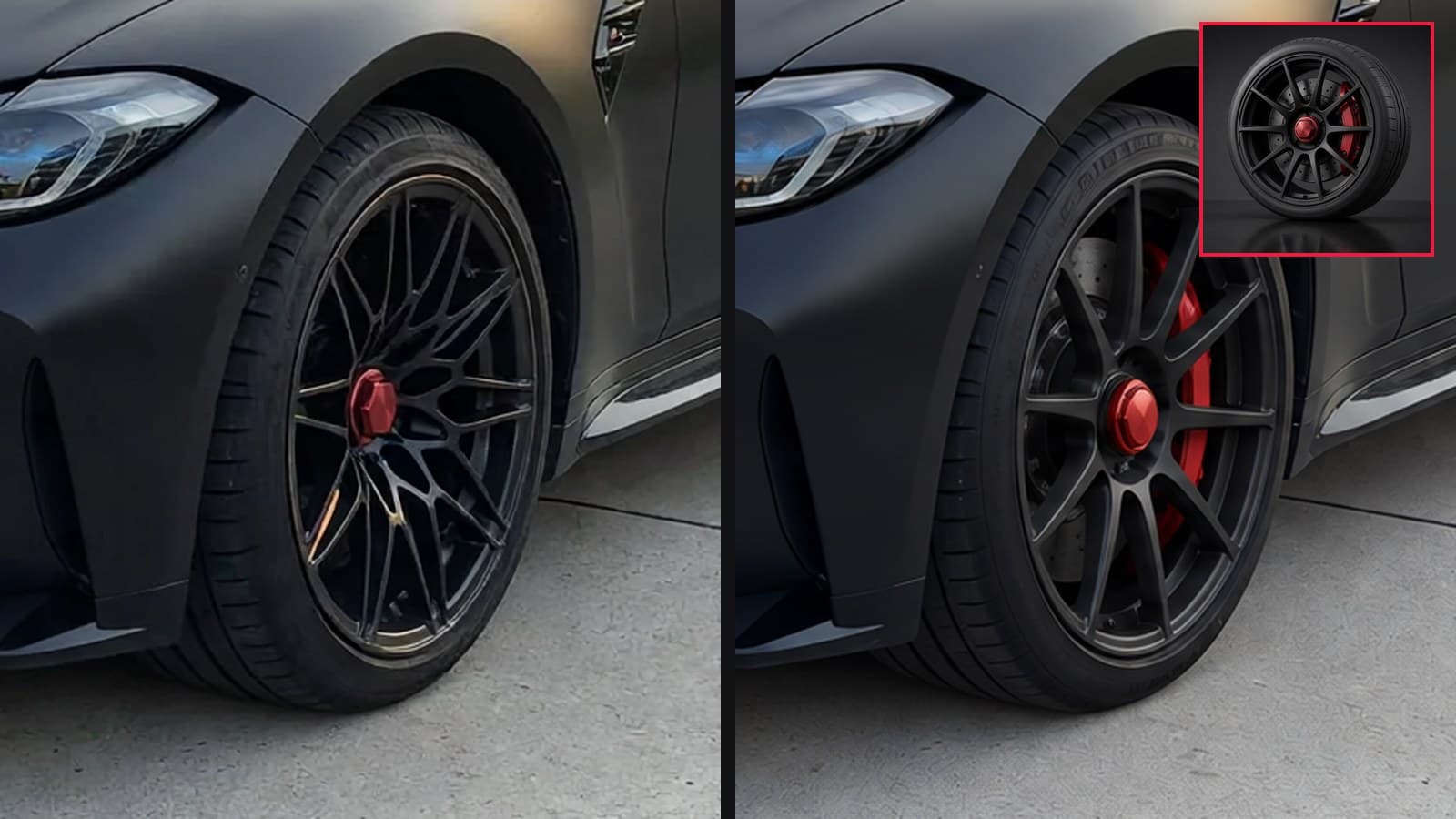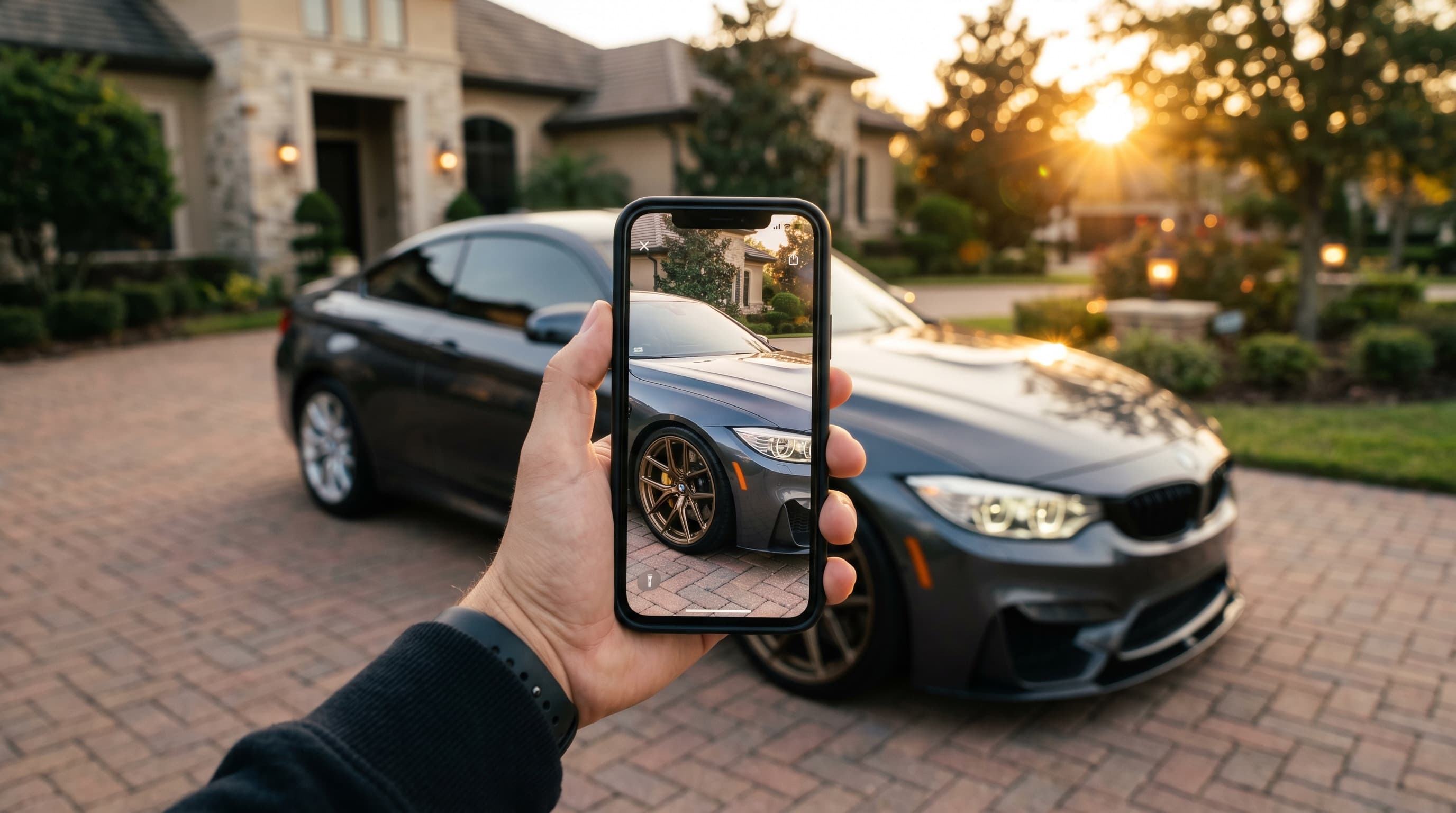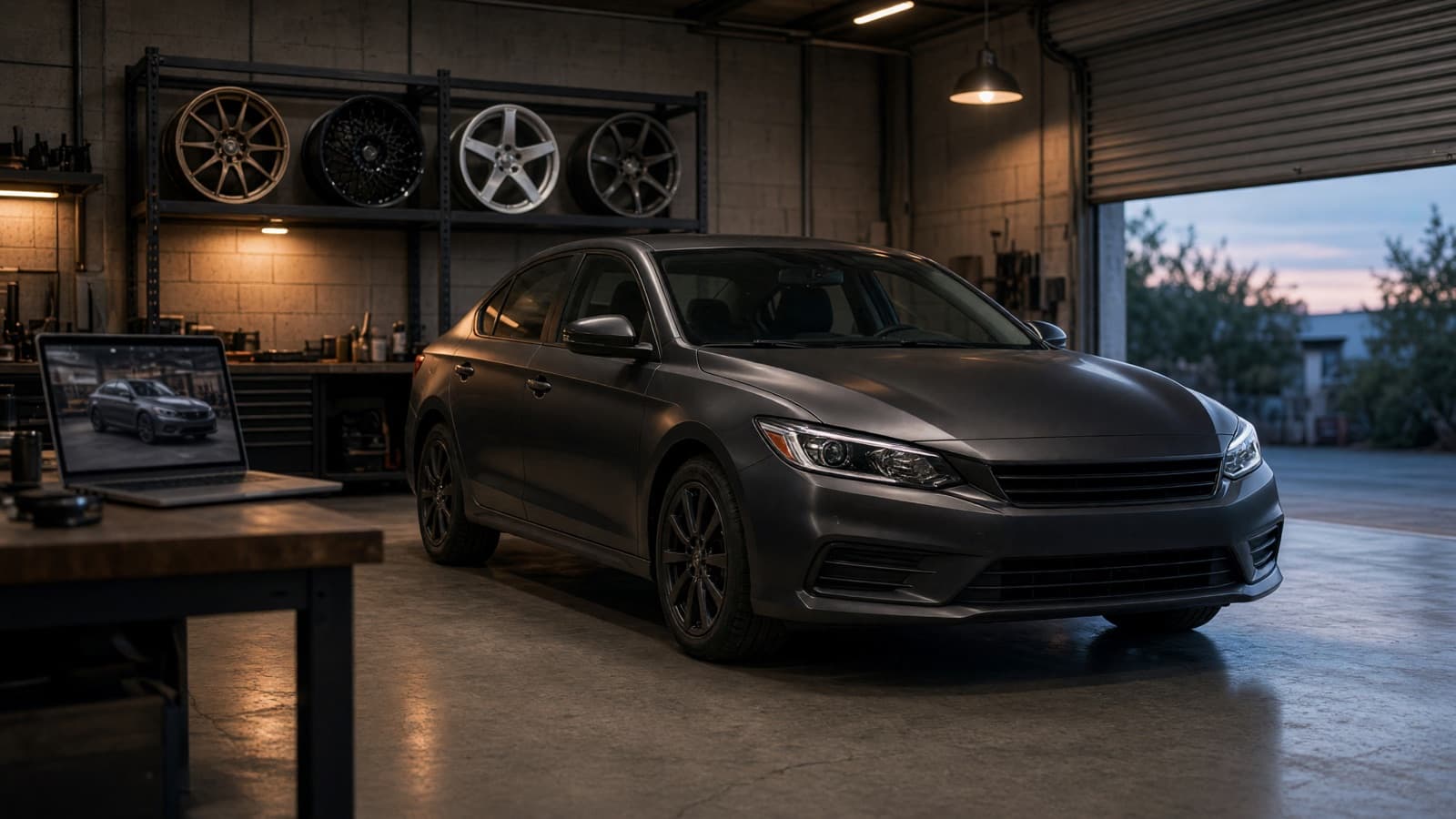
Every wheel shop hears the same question, in the showroom, in DMs and on the phone: "What would these look like on my car?" Most shops answer it with photos of somebody else's car, a mockup made after hours, or a shrug. The customer says they'll think about it, and a four-figure order goes quiet.
AI renders answer the question in about a minute, on a photo of the customer's own car, and they do it in a way that ends with a quote request in your inbox instead of a maybe. This post walks through that whole path with real screenshots from our storefront: what the shopper sees, what you get, how to set it up, and what it costs.
Why "what would it look like?" stalls wheel sales
Because the customer is choosing from photos of other cars. A product shot shows the wheel on a white background. A gallery shot shows it on a car in a different color, at a different ride height, under different light. Neither tells a silver 3 Series owner whether bronze works on their car.
It is a big category to be guessing in. SEMA's 2025 Market Report puts US sales of wheel, tire, suspension and brake products at $12.51 billion in 2024, roughly a quarter of the $52.65 billion specialty-equipment market (our division). And buyers do their homework online first: 51% of accessorizers look for parts information on search engines and review sites.
Research on visual try-on points the same way. A 2022 study in the Journal of Marketing found that augmented reality's effect on sales was small overall but greater for more expensive products and strongest when product-related uncertainty is high, which describes a set of wheels well. In a survey Snap commissioned from Publicis Media and Alter Agents, 80% of shoppers said AR tools made them more confident in a purchase. That one is a vendor's survey, so treat it as a direction, not a forecast.
So the customer does what everyone does with an expensive decision they can't picture: they wait. Some come back. Many buy whatever they end up seeing on a car like theirs, somewhere else.
What the shopper sees, step by step
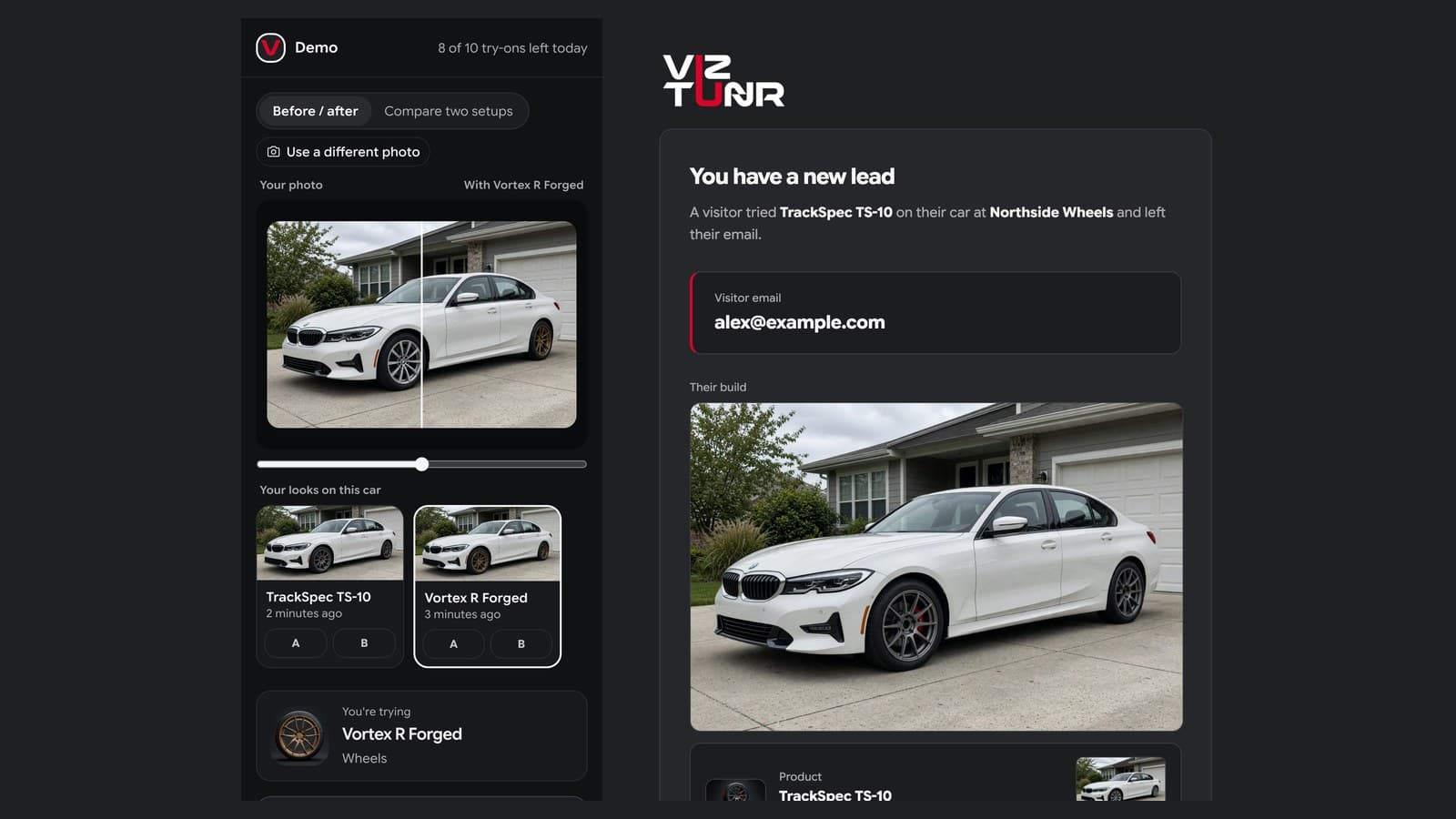
One button on your product page, one photo, one tap. These screenshots are from our live demo storefront, using our own photo of a white BMW 3 Series and two wheels from our demo catalog. A real shop's storefront shows its own name and logo in the header.
1. They click "Try on your car" on your product page
The button is a link that carries the wheel's product image and name. The shopper lands on a page that already knows which wheel they're looking at, so there's nothing to search or pick.
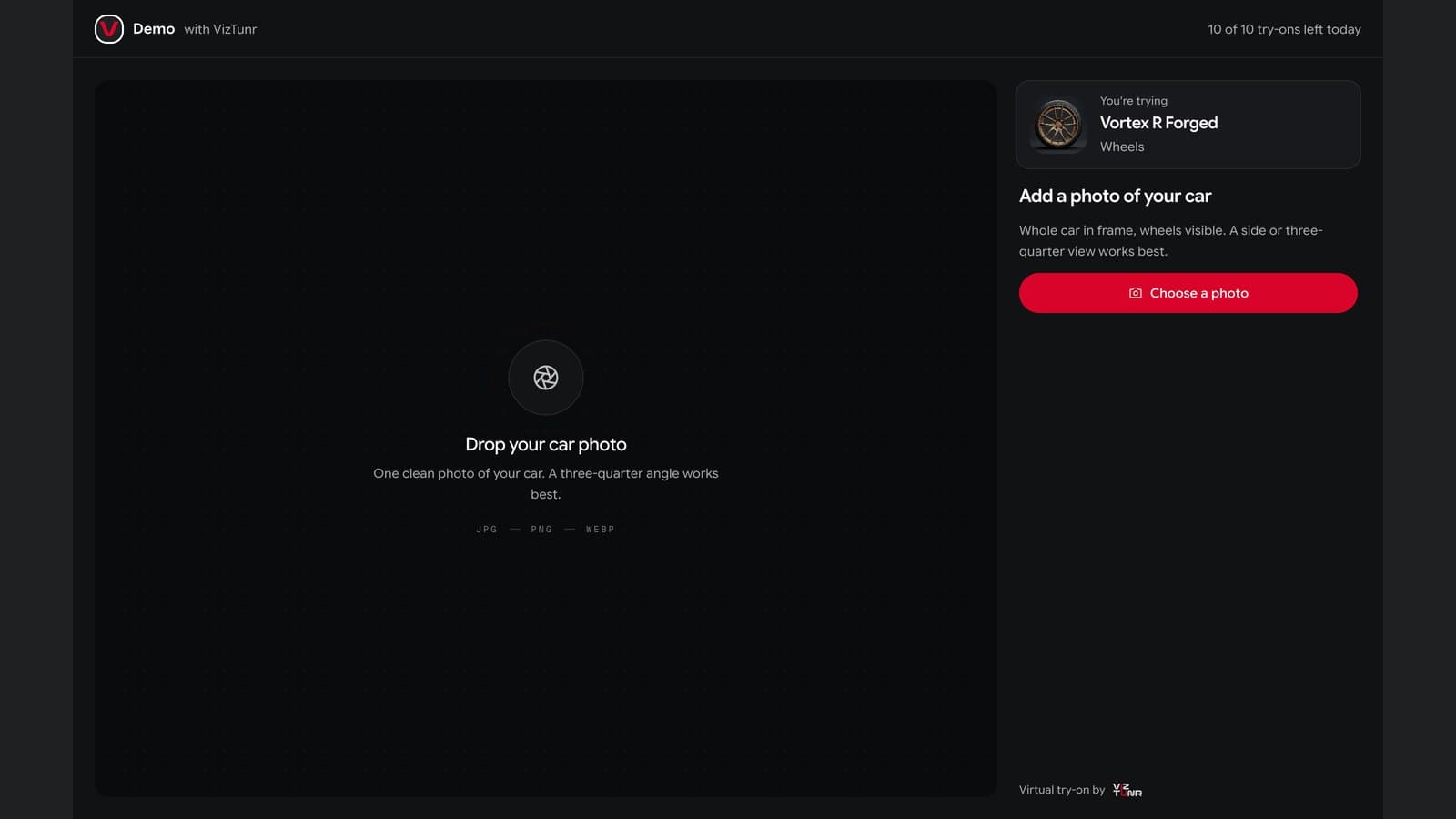
2. They add one photo of their car
A phone photo is enough: whole car in frame, wheels visible, side or three-quarter view. On a phone the upload button offers the camera, so they can walk out to the car and take one.
Adding the photo does not start a render. The shopper sees their car and one button, "Try Vortex R Forged on my car", with the try-ons they have left today underneath. Nothing is spent until they tap it.
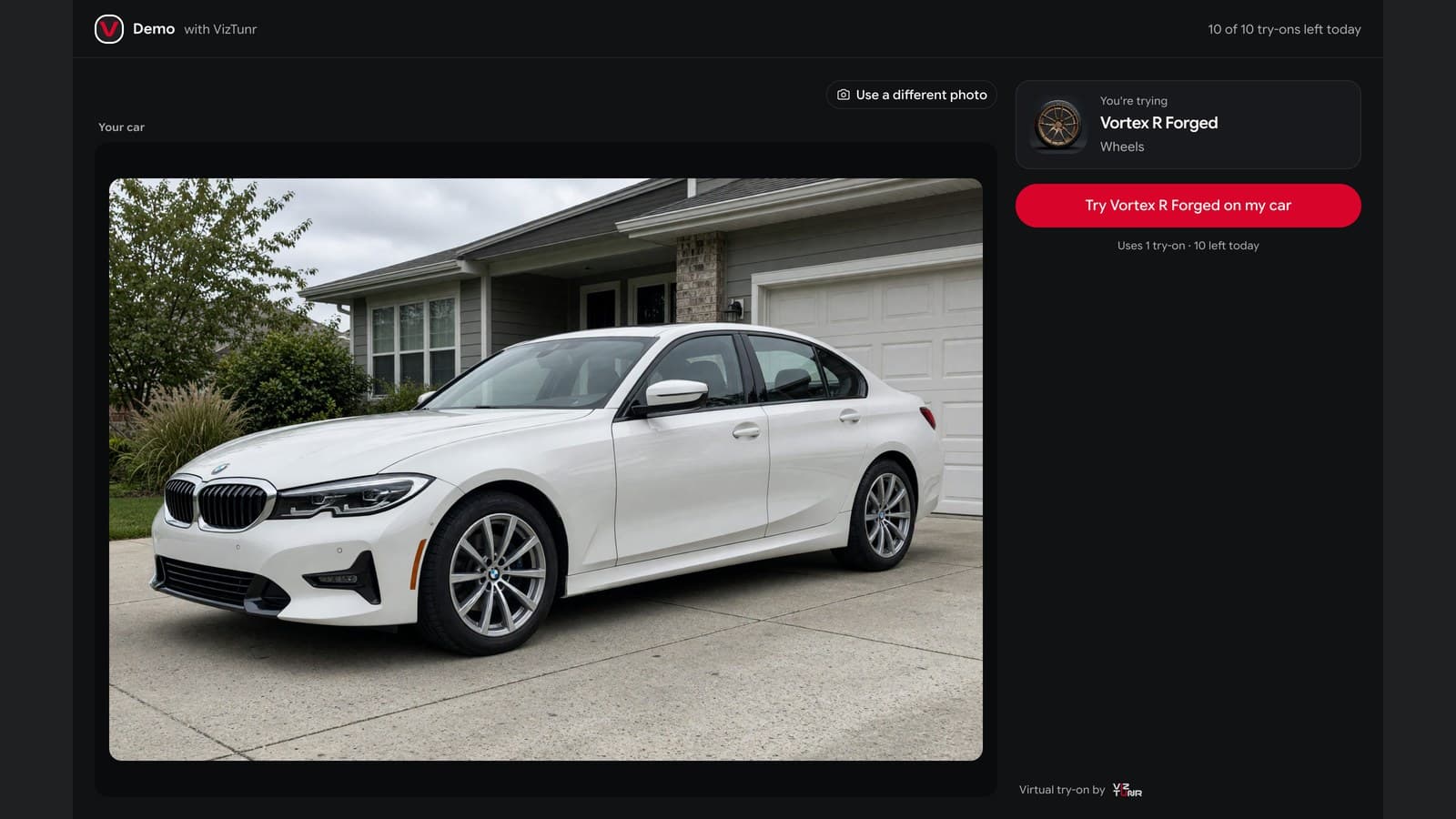
3. The render takes about a minute
The page shows what it is doing: reading the photo, rendering the build, then checking that the wheels match the product. If the check fails, it renders again on a stronger model at no extra cost to the shopper or the shop. We wrote up how accurate AI wheel renders are and how that check works in a separate post.
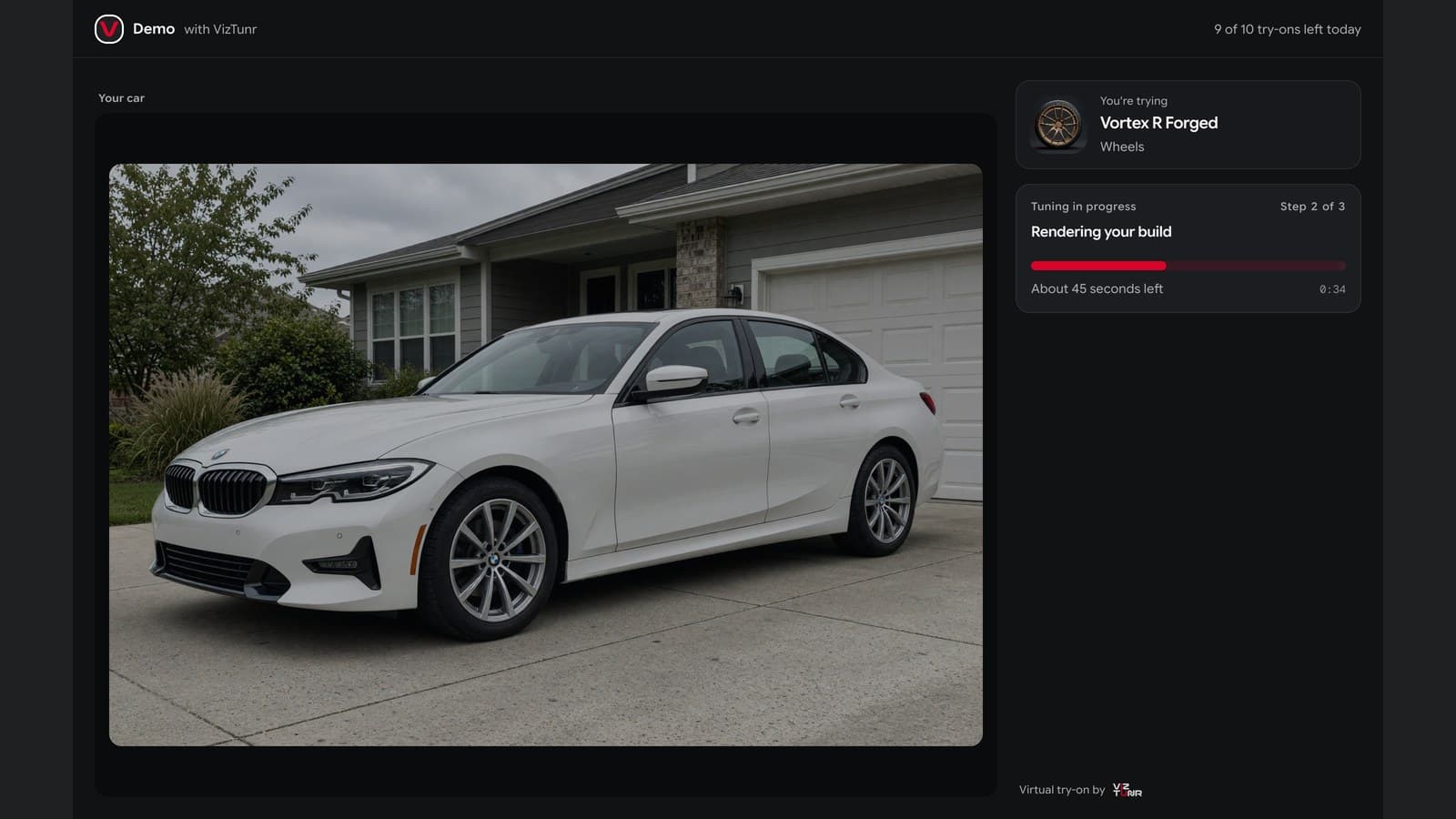
4. They see the wheel on their own car
A before/after slider puts their photo and the render side by side on the same frame. Same car, same driveway, same light. The only thing that changed is the wheel, which is the comparison they could not make from your product photos.
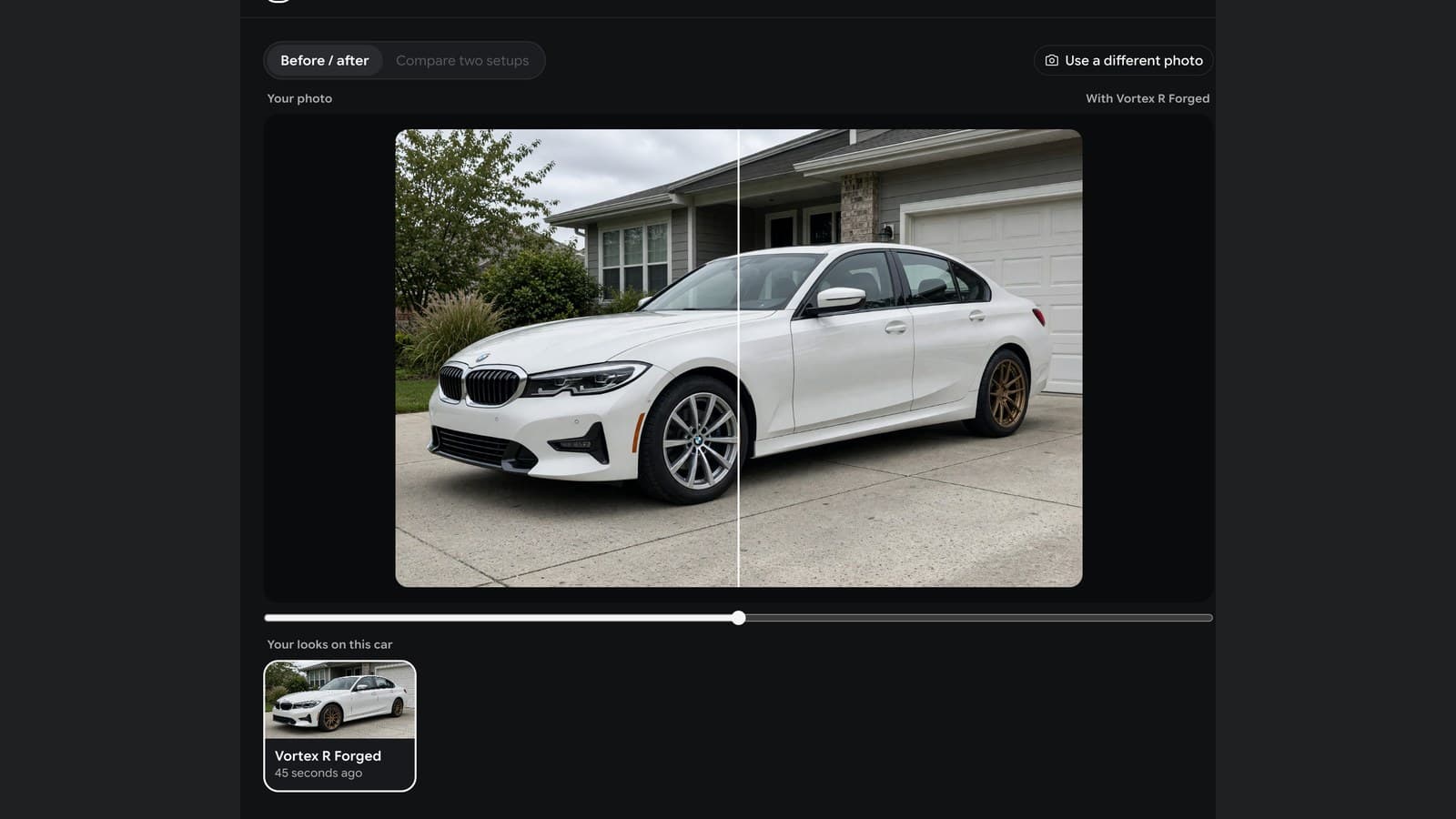
5. They come back to try another wheel
Most shoppers try more than one wheel. Across 875 shopper sessions on nine shop storefronts between July 9 and October 19, 2026, 61% rendered two or more setups, and the average session rendered 3.1.
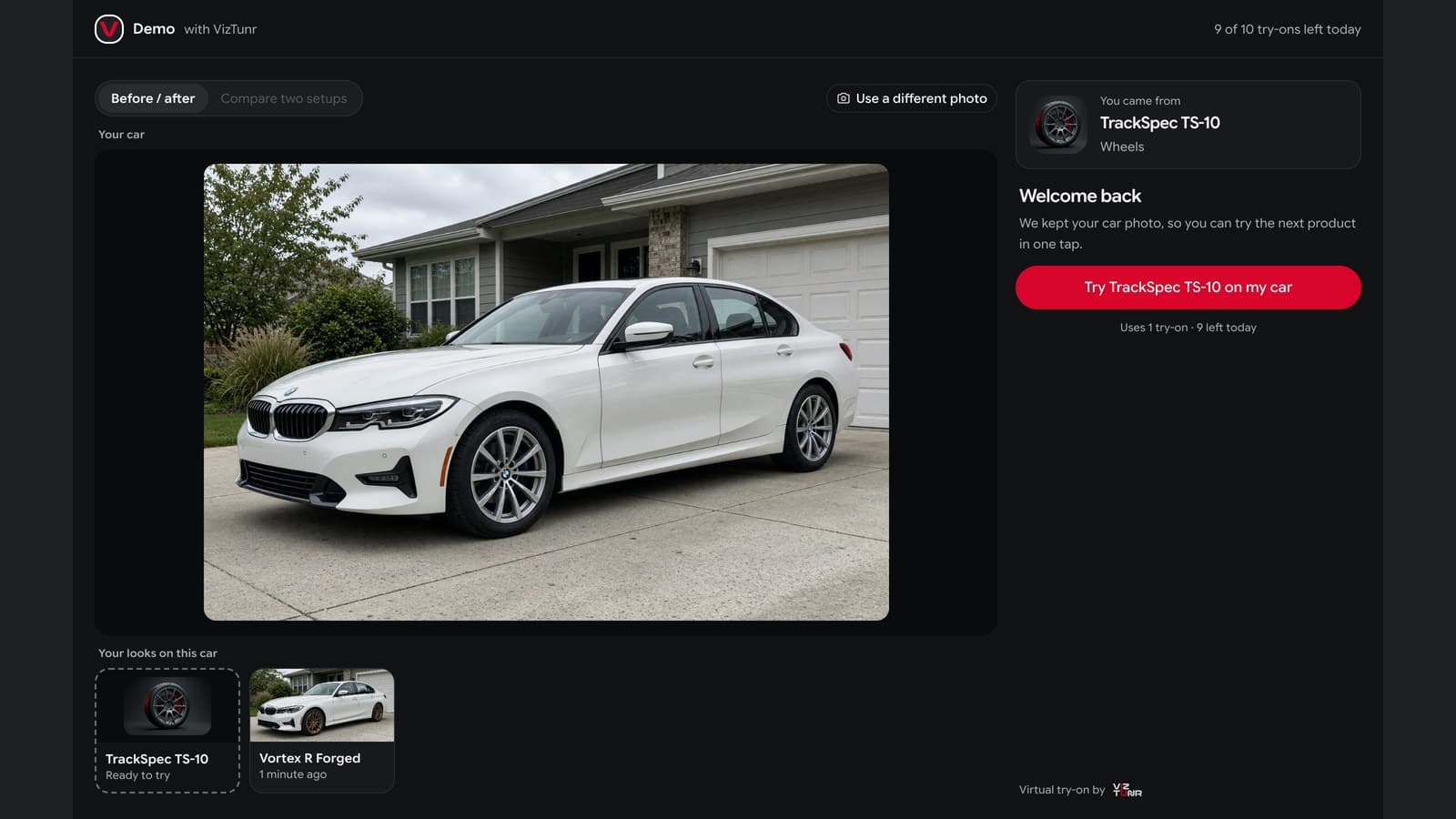
So the storefront makes the second wheel easy. When the shopper clicks "Try on your car" on another product page, their photo is still there: "Welcome back. We kept your car photo, so you can try the next product in one tap." Every look they've rendered sits in a strip under the car.
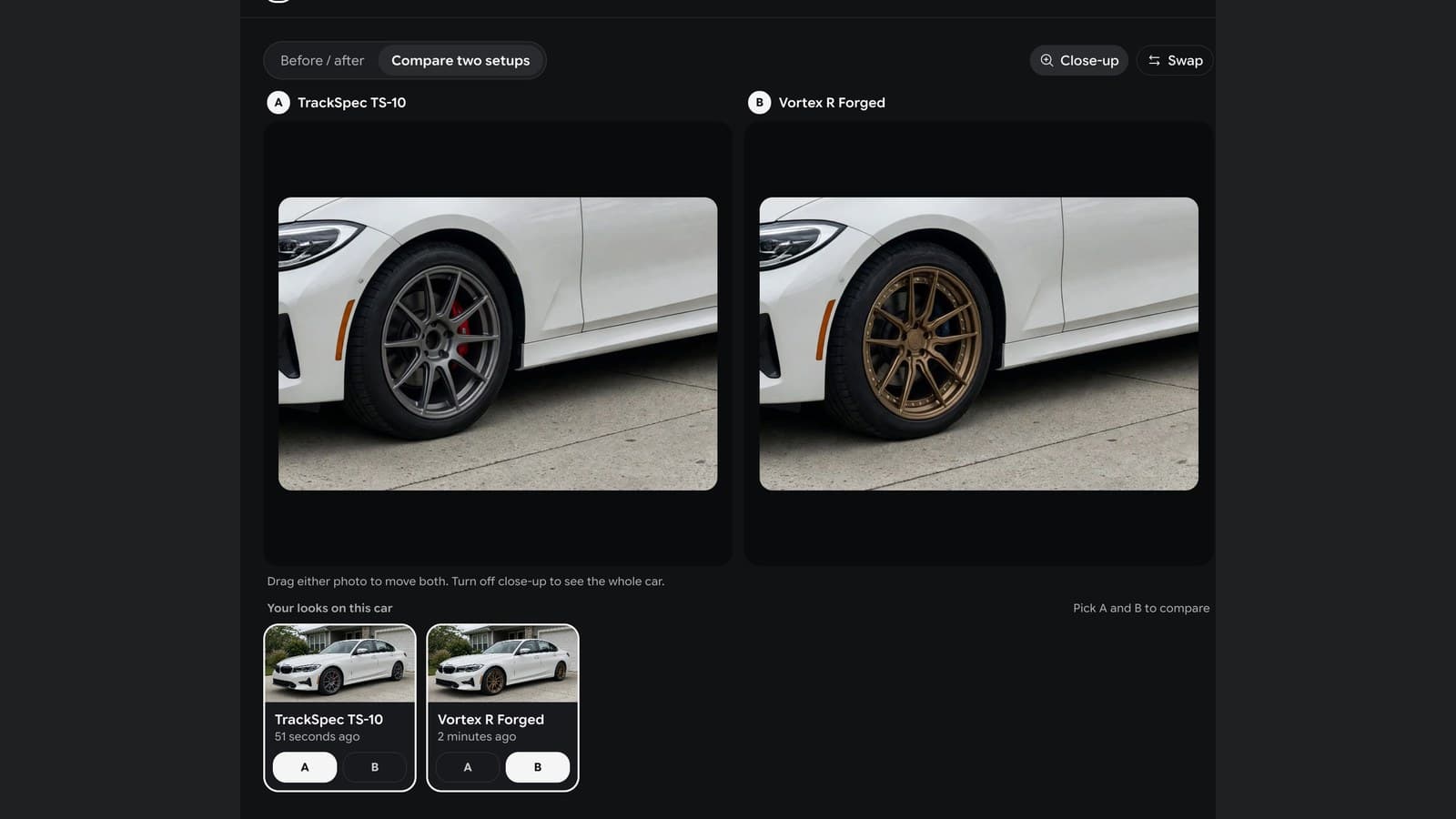
With two looks, they can put them side by side. "Compare two setups" shows both renders in close-up, cropped to the wheel, and dragging one moves both. This is the moment a shopper decides between your gunmetal ten-spoke and your bronze forged wheel, on their own car, without leaving your site.
6. They ask for a quote
Once a render is on screen, the side panel asks: "Like it? Get a quote." The form has one field, their email, and says your shop gets the build with it. If they are comparing two wheels, they pick A, B or both. The same form appears when they reach the daily try-on limit, under "Get a quote on this build", so a shopper who has tried ten wheels still has somewhere to go.
One field is deliberate. A shopper who just saw the wheel on their car has already done the hard part; asking for their name, phone, car and tire size at that moment only loses them. You can ask for all of that in your reply.
What the shop gets: a lead with the build attached
An email with the customer's address and the render of your wheel on their car. Here is the real template, filled with the renders from the visit above (the shop and visitor names are samples):
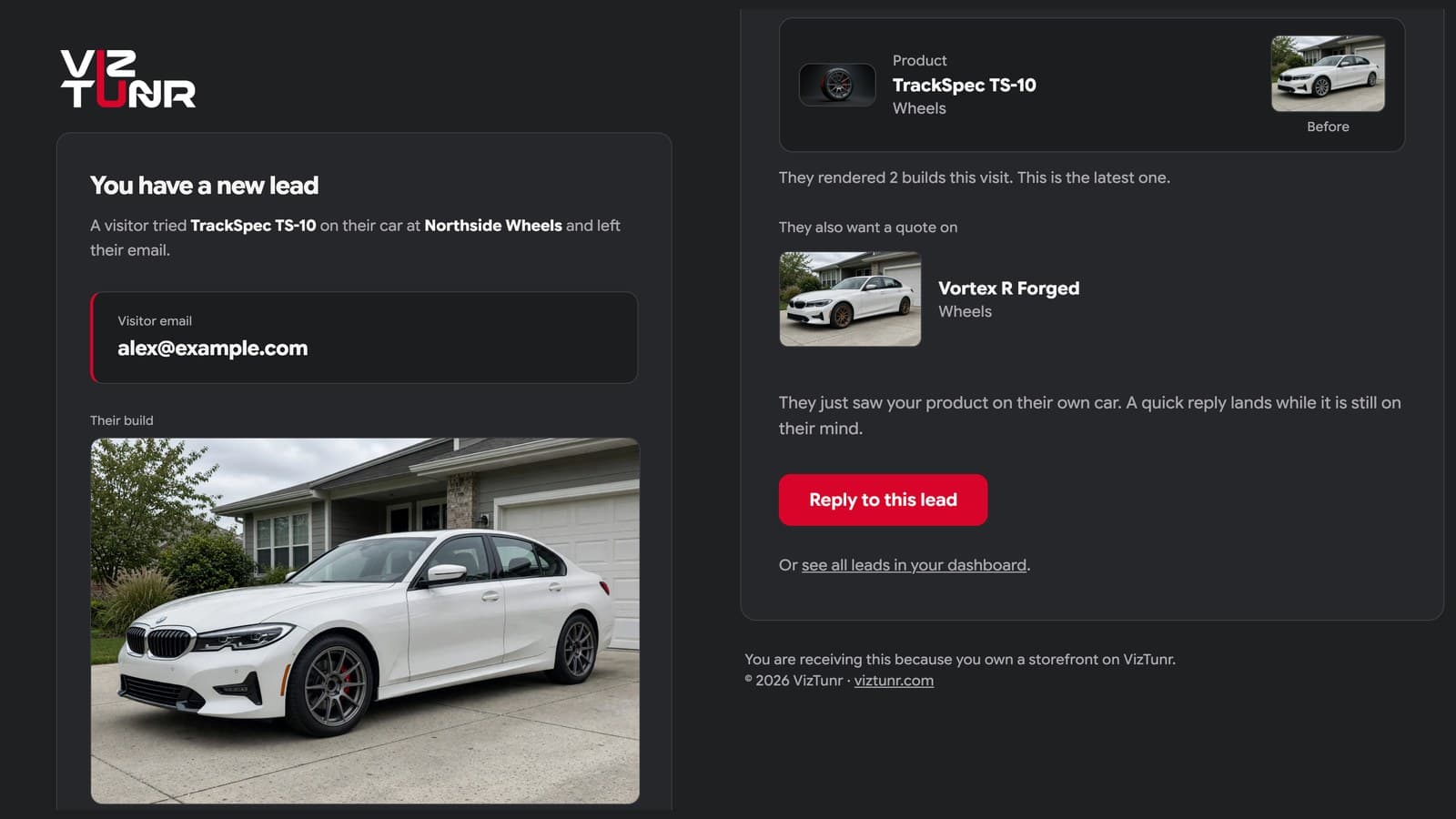
The email shows:
- Their build: the render, full width, so you see exactly what they saw.
- The product and their photo: which wheel, and the car as it is today, which tells you make, color and current setup before you reply.
- The second setup: if they compared two wheels, you know they are deciding, and between what.
- Reply to this lead: opens your email client with the subject "Your TrackSpec TS-10 from Northside Wheels", addressed to them.
In the dashboard, each visitor has a page with every setup they tried, which ones they want quoted and a timeline of the visit. That's useful even for visitors who never left an email: it shows which wheels people try most on which cars.
Reply while they're still looking
The first hour matters more than anything else in this process. When Harvard Business Review audited 2,241 US companies by sending each a web lead, 37% replied within an hour and 23% never replied at all. In the same research, firms that contacted a lead within an hour were nearly seven times as likely to qualify it as firms that waited even an hour longer, and more than 60 times as likely as those that waited a day or more. The study is from 2011, but the mechanism has not changed: the customer is still looking at wheels, just maybe not yours.
The lead email lands the moment they submit, with the render in it, so you can reply from your phone between installs.
A good first reply is short and specific: the price for that wheel and tire package on their car, the size you'd fit, one fitment note (offset or spacers, see our wheel offset guide), and an install slot. The render already did the selling. Your reply turns it into a booking.
Where it fits in a wheel shop's day
Anywhere the question comes up, not only on the website.
- Product pages. The obvious one: a "Try on your car" button next to "Add to cart" or "Request a quote".
- Instagram and WhatsApp DMs. When someone asks "would these suit my car?", send the try-on link for that wheel instead of a gallery photo.
- Phone inquiries. Text the link while you're still on the call.
- The counter. For walk-ins, your staff can render wheels on a photo of the customer's car in VizTunr's Personal Studio, a private workspace for your own renders, and show it on a tablet.
What you control
- Which wheels. Only product images from your own image domains (for example
cdn.shopify.comif you're on Shopify) can be rendered on your storefront, so nobody can use your account for someone else's catalog. - How many try-ons per visitor. A daily cap per visitor, 10 by default, adjustable from 1 to 1,000. The counter is visible to the shopper.
- Your branding. Your shop name and logo in the header. A small VizTunr credit stays on the page.
- Language. The storefront follows the shopper's browser language in English, Polish, German or French.
- Where leads go. Lead alerts go to the email you choose, or your account email.
How to set it up
Allow your image domains, pick what you sell, and put one link on your product pages. No catalog sync and no 3D models. The button is a plain link:
<a
  href="https://app.viztunr.com/s/your-shop?op=wheels&ref=PRODUCT_IMAGE_URL&label=PRODUCT_NAME"
  target="_blank"
  rel="noopener"
  >Try on your car</a
>
Paste it next to "Add to cart", with your product template filling in the image URL and name. It works on Shopify, WooCommerce or a custom site. If you'd rather not touch the template, the setup page gives you a ready-made prompt for Claude Code, Cursor or a Shopify assistant that places the button for you.
What it costs
From $49 a month for 100 renders to $199 for 550, and unused renders roll over. Each try-on a shopper starts uses one render, which is why the per-visitor cap exists. A shop selling wheel and tire packages needs one extra booked install a month for the plan to pay for itself. Full details are on the pricing page.
What it won't do
- Check fitment. The render shows the design on their car, not whether it clears the brakes or sits flush. That's your job, and it's a better conversation to have with a customer who already wants the wheel.
- Replace your product photos. Renders are for the customer's decision, not your catalog.
- Get every render right the first time. Our check catches most misses before the shopper sees them, but it's AI. The accuracy post has the numbers.
Try it on a car
The fastest way to judge it is to be the shopper. Open the demo shop, pick a wheel, add a photo of any car and run the flow above, no account needed. When you want it on your own product pages, get started and the setup takes an evening.
AI Wheel VisualizerWheel ShopVirtual Try-OnTuning ShopWheel Visualizer
October 19, 2026 · 11 min readCategory: Try-It-On
Explore related