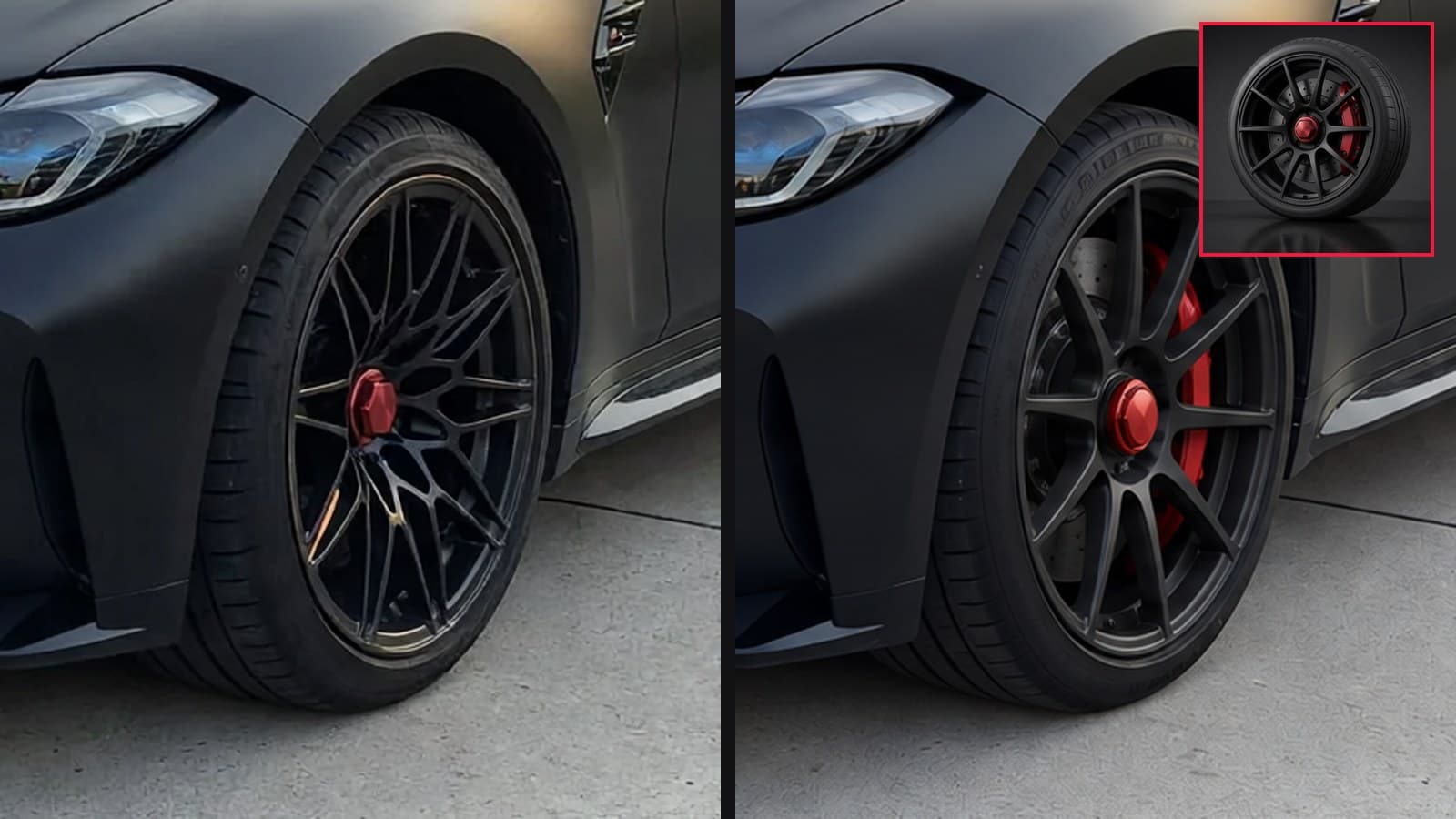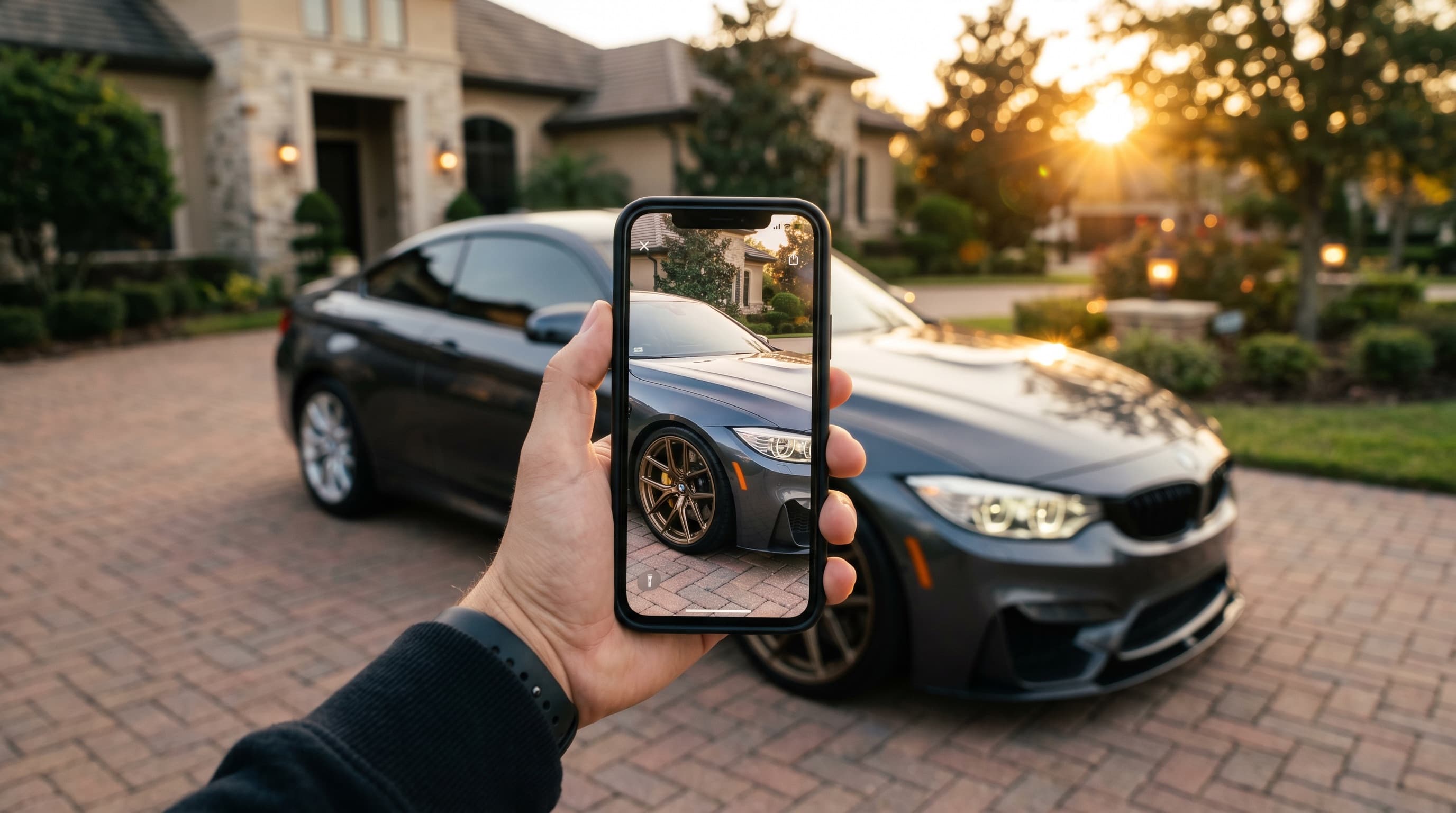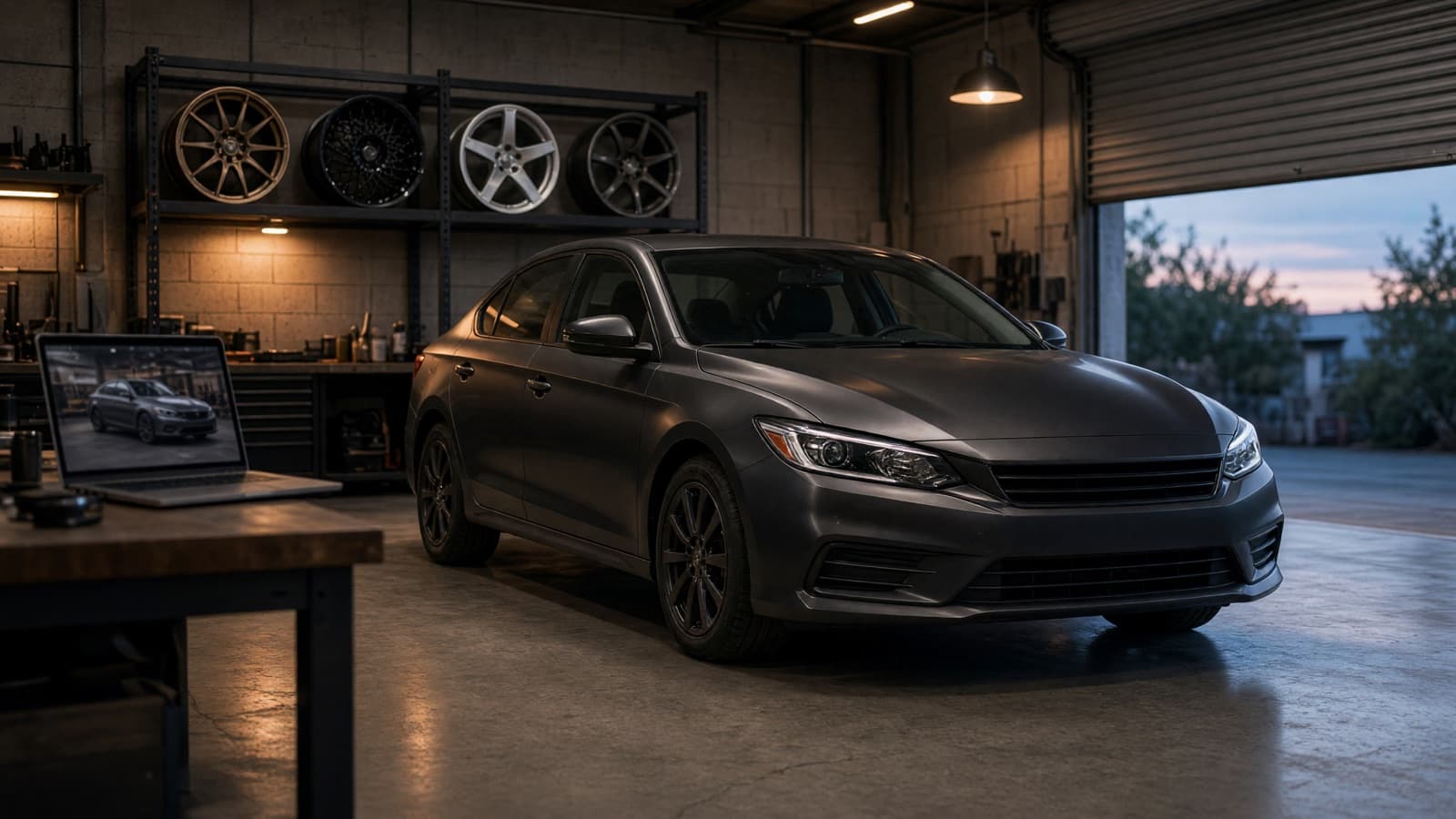
A wheel shop owner wrote to us last week with a very specific wish. They wanted a private studio, a garage of their customers' cars and their wheel models, with a history of every fitting they had ever done. A customer sends a photo, the car goes into the garage, the shop finds compatible wheels, fits them, and later can pull up that same car, or those same wheels, for the next customer.
That is exactly what the Personal Studio is now. This post walks through what shipped this week: a private tuning studio with projects per car, an asset library built for hundreds of wheels, notes that ride along with every asset, and a built-in list of iconic factory colors. Shops get a fitting garage. Enthusiasts get a place to plan a build. Nobody needs a subscription.
What the Personal Studio is
The Personal Studio is a private VizTunr workspace, one per account, that nobody else can see. It uses the same rendering engine as the public try-on storefronts, but there is no storefront. No customer-facing page, no leads, no branding to set up. You open it, drop in a car photo, pick what to change, and get a photoreal render of that exact car about a minute later.
It has three parts:
- Projects and folders hold the cars. A project is one car, a folder groups projects however you like: per customer, per build, per season.
- The asset library holds what you put on the cars: wheel photos, wrap swatches, body kit references, plus hex colors with no image at all.
- History keeps every render. Each run lands on a before-and-after slider next to the original photo, and it stays in the project until you delete it.
It runs on credits, not a plan. One render costs one credit, $0.75 pay as you go, and credits never expire.
A garage for your customers' cars
Make one folder per customer and one project per car, and the studio becomes a fitting garage. The car photo goes in once. Every wheel you try on it is a render in that project, labeled with what you used, sitting on a slider against the stock shot.
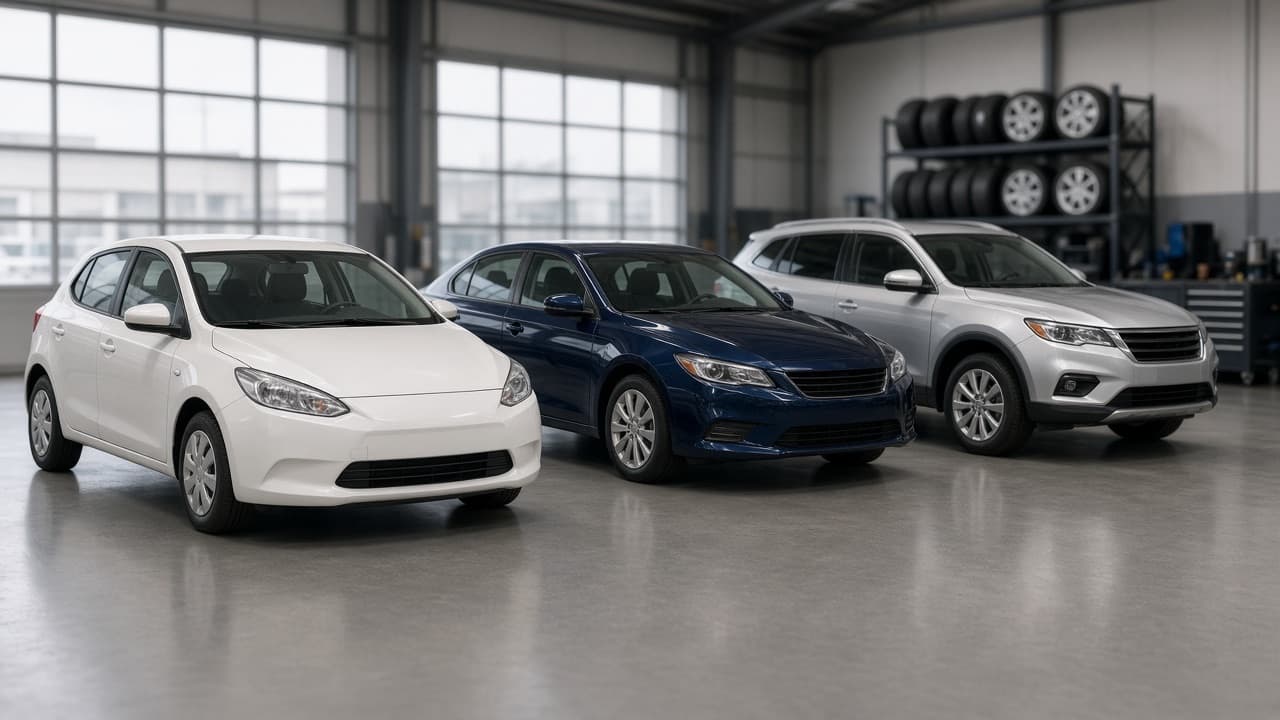
This is where the history earns its keep. The customer who "wants to think about it" comes back three weeks later. You open their project and the three sets you fitted are still there. A different customer with the same model asks about the same wheels. You already have a render of that wheel on that body shape. Send it, or re-run it on their own photo in a minute.
Two details make this work day to day:
- Continue tuning promotes a finished render to the new base photo, so you can stack a color change on top of the wheels you already fitted instead of starting over.
- Restore original rewinds to the first upload at any point, with your options kept, so a clean re-run is one click.
Your wheel library, built once
A wheel shop's library is not ten wheels, it is three hundred. The library was rebuilt around that number. Everything is searchable, taggable, and paged, so the picker inside the editor stays fast whether you hold twenty assets or two thousand.
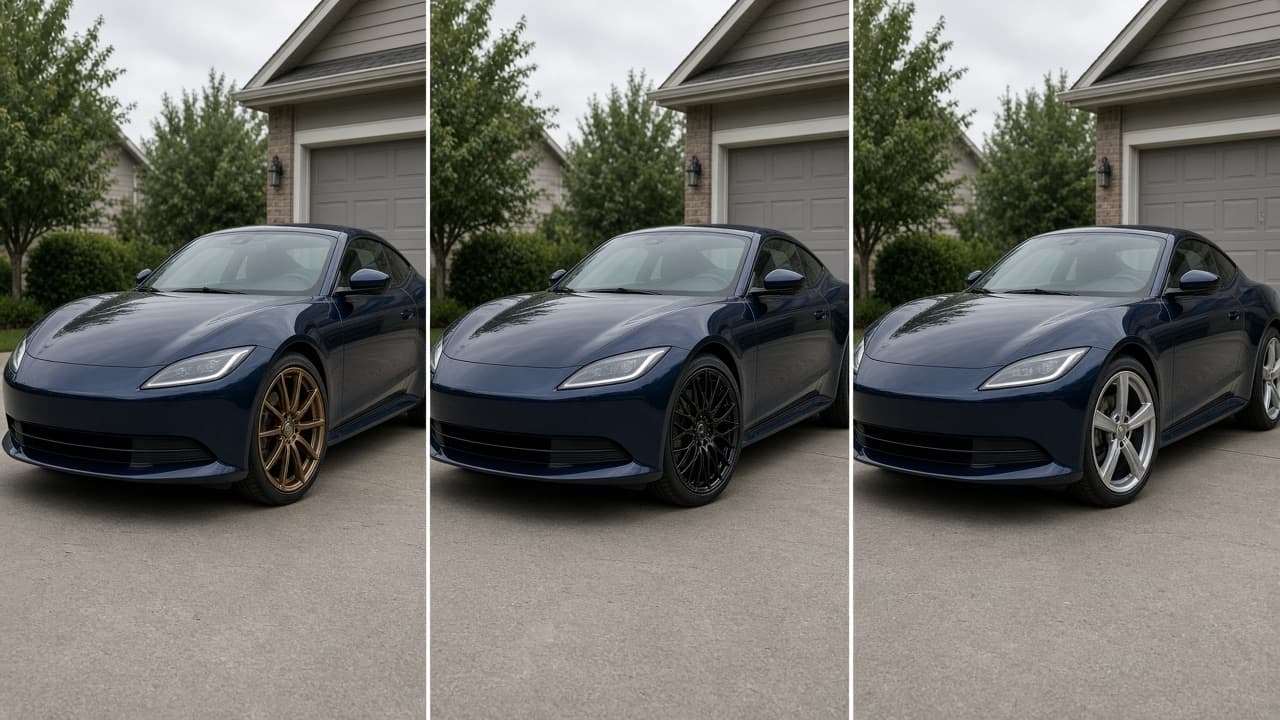
What each asset carries now:
| Field | What it does |
|---|---|
| Name | What you see in the picker. "Vossen CV10 19in" beats "IMG_4471". |
| Tags | Brand, size, bolt pattern, style. The search box and the tag chips filter on these. |
| Notes | Travel with the asset into every render. Write "19x9.5 ET35, gloss bronze, concave face" once, the AI reads it every time. |
| Favorite | Pins the asset to the top of every picker. |
| Last used | Recently used assets float up automatically, so your busiest sets are always one tap away. |
The notes deserve a second look. Before this week, a note lived on the render, and you retyped it for every car. Now it lives on the wheel. Pick the wheel and the note comes along as a "reference note" in the prompt, separate from whatever you type for this particular run. Swap the wheel and the note swaps with it. Nothing you wrote for the customer gets overwritten.
Bulk editing is there for the housekeeping: select a batch, add a tag, star them, or delete them in one go.
Iconic factory colors, one tap
Color / wrap now ships with a searchable list of factory paints, grouped by maker. Nardo Grey, Daytona Grey, Guards Red, Miami Blue, Chalk, Yas Marina Blue, Isle of Man Green, Aston Martin Racing Green, Rosso Corsa, Verde Mantis, Soul Red Crystal, Plum Crazy, Bayside Blue, Midnight Purple, and about sixty more.
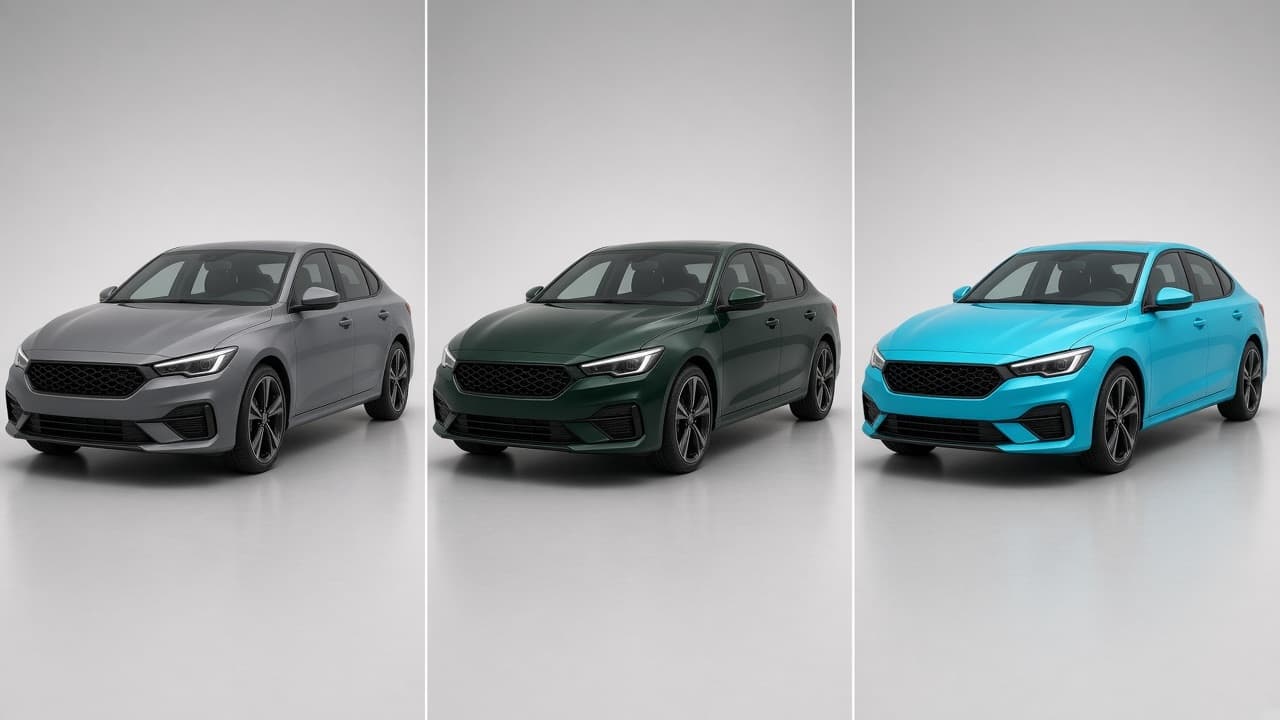
Why this matters more than a color picker: an image model weighs words far more than a hex code. Give it "#6c6f70" and it lands somewhere near grey. Give it "Audi Nardo Grey, solid flat mid-grey, completely non-metallic, exact color #6c6f70" and it lands on Nardo. Picking a preset writes exactly that into the prompt, and sets the finish (gloss, matte, pearl, metallic) to match the real paint.
For wrap shops there is one more step. Hit Save on any factory color and it becomes a color asset in your own library. Add a note with the film that matches it ("3M 2080 G31 Gloss Nardo Grey") and the next time a customer asks for "that Audi grey," the render and the SKU are in the same place.
Hex values are close approximations of the real paint codes. They are good enough for a render, not a color-matching reference.
The workflow, step by step
Here is the wish from the top of the post, as it works today:
- The customer sends a photo. You create a project in their folder and upload it. Any phone photo of the whole car works.
- You find compatible models. Open the Wheels panel, type the bolt pattern or brand you tagged, and the library narrows to what fits.
- You fit three sets. Three renders, three sliders. The notes on each wheel go into the prompt on their own.
- The customer picks one. Continue tuning to add a color or a lip spoiler on top, or download the render and send it.
- Everything stays. The car photo, the wheels, the renders. Next customer, same model, same wheels: two taps.
What it costs
| Option | Price |
|---|---|
| Pay as you go | $0.75 per render, packs from $15 (20 renders) |
| Expiry | Never. Credits sit in your balance until you use them. |
| Subscription | Optional. The shop plans from $49/month bring it down to about $0.36 to $0.49 per render. |
There is no separate studio plan. If you already run a VizTunr storefront, the studio shares your balance.
For enthusiasts too
None of this is shop-only. If you are planning your own build, the studio is the same tool with one folder: your car, the wheels you are torn between, the three colors you keep going back and forth on. Try them all for the price of a coffee and stop arguing with yourself in the parts forum.
Open your garage
The Personal Studio is created with your account and lives at the Personal tab in the app. Read the Personal Studio overview for the full picture, the asset library guide for tags, notes, and factory colors, or try the live demo first to see a render on a car photo without an account.
Personal StudioAsset LibraryWheel FitmentFactory ColorsTuning Shop
September 2, 2026 · 9 min readCategory: Product
Explore related